Upgrading PS4 Slim Hard Drive
Essential Reading:
PS4 Slim HDD Upgrade
-
How to Upgrade Your PS4 Slim Drive
-
Backup Your Original Hard Drive
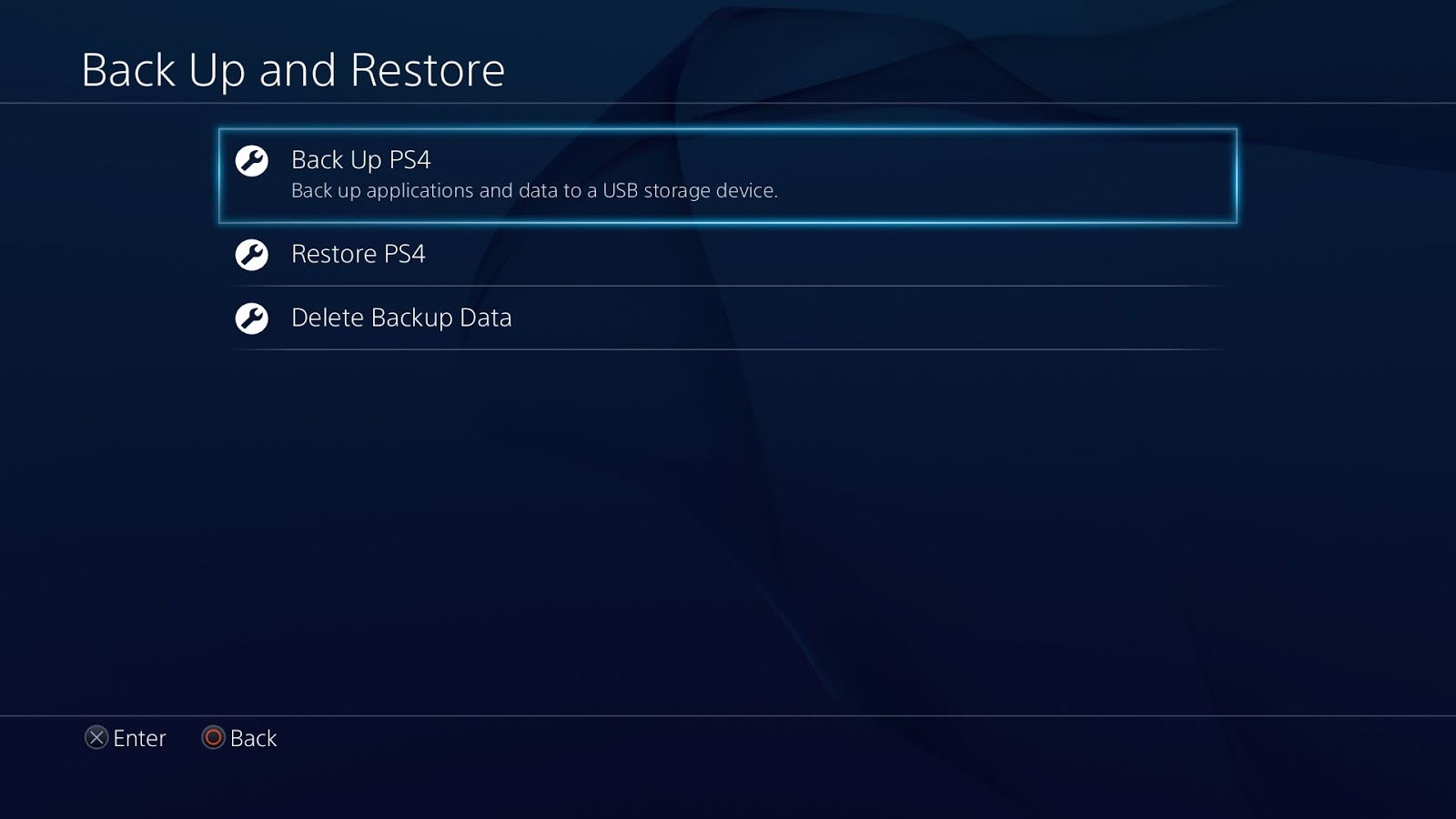
First things first; backup your original hard drive to your external hard drive. If you have a smaller flash drive instead of an external HDD, backup your game saves, user data, and any other important info you want to transfer over. For your digitally downloaded games, if you don't have the space to back them up, you'll have to re-download them onto the new HDD. If you have a data cap with your Internet service provider, you will probably want to invest in an external hard drive backup instead of a flash drive.
If you need step-by-step instructions on how to do this, we happen to have a lovely Help Desk on this topic!
-
Slide the HDD Bay Cover Off

Turn off your PS4 Slim and unplug everything from it. The hard drive bay cover is in the back of the PS4 Slim, and it's rather tiny compared to the regular PS4's bay cover. Grip it with both thumbs and slide it off. Don't worry, you won't break it.
-
Remove the Hard Drive
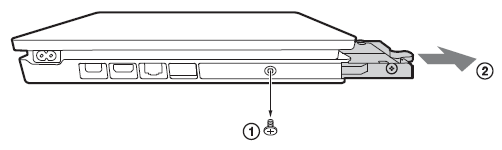
Remove the one lone screw and pull the hard drive out of the console by its mounting bracket.
-
Remove Mounting Bracket Screws
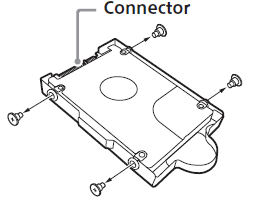
The mounting bracket has four screws holding the HDD in place. Remove them and keep track of where you place them. Do not remove the rubber inserts.
-
Remove Hard Drive From Mounting Bracket
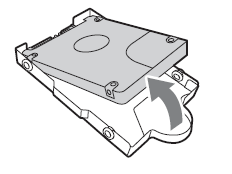
Grip the HDD from where you pulled it out of the console and lift it up and out of the mounting bracket to remove it safely.
-
Replace the HDD
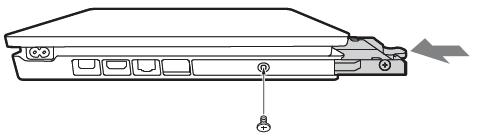
Insert the replacement hard drive into the mounting bracket, and secure it in place with the four screws. Slide the HDD into the bay, and secure it with the lone screw. Lastly, slide back the bay cover in place. Plug everything back in, but do not turn it on yet.
-
Restore PlayStation Operating System

Before you turn on your PS4 with its new hard drive, you will need to download the latest operating system onto a USB flash drive. Download it on your PC from their website, move it to the flash drive, and then insert the flash drive into the PS4.
To install the OS from the flash drive, turn on the PS4 in safe mode. Hold down the power button for seven seconds to power up safe mode. Plug in your PS4 controller to the console (wireless is disabled), and then follow the on-screen prompts.
Lastly, after the OS is installed and raring to go, it's time to upload your user data, game saves, etc. by restoring from your backup. Isn't it great our Help Desk has that info too?