LittleBigPlanet 3 is out now on the PlayStation 3 and 4. As mentioned in our review, there is currently a bug on the PS4 version that can affect some players, whereby the Popit menu locks the game up for anywhere from a couple to 30 seconds. Well, it is our pleasure to announce that a fix has been found!
The issue lies in the PS4’s capture functionality. It appears that you have more than 10 screenshots (any screenshots), the glitch rears its ugly head as the game seemingly attempts to prepare thumbnails for every single screenshot that is on your system. The solution is simple – delete all of your screenshots. While this isn’t an ideal solution, obviously, it is at least a fix. Want a step-by-step guide? We have that right below!
If first you’d like to backup your screenshots, which is perfectly understandable, you’ll need a USB stick or external hard drive, formatted as a FAT32 drive. Open the Capture Gallery application from the PS4’s home screen, and select the “All” folder when prompted. Navigate to the Screenshots section, and press right on the directional pad. Press Options, and choose Copy to USB Storage, then Select All, and finally, Copy. Once that process is complete, you can press Options again, and choose Delete. Choose Select All one more time, and select Delete.
That’s all there is to it! Once your screenshots are gone, you can open your Popit menu without any lag. Hopefully Sumo Digital and/or Sony will have an actual solution to this problem, but in the meantime enjoy your freeze-free adventure!
LittleBigPlanet 3 Popit Glitch Fix
-
Popit Glitch Fix 01
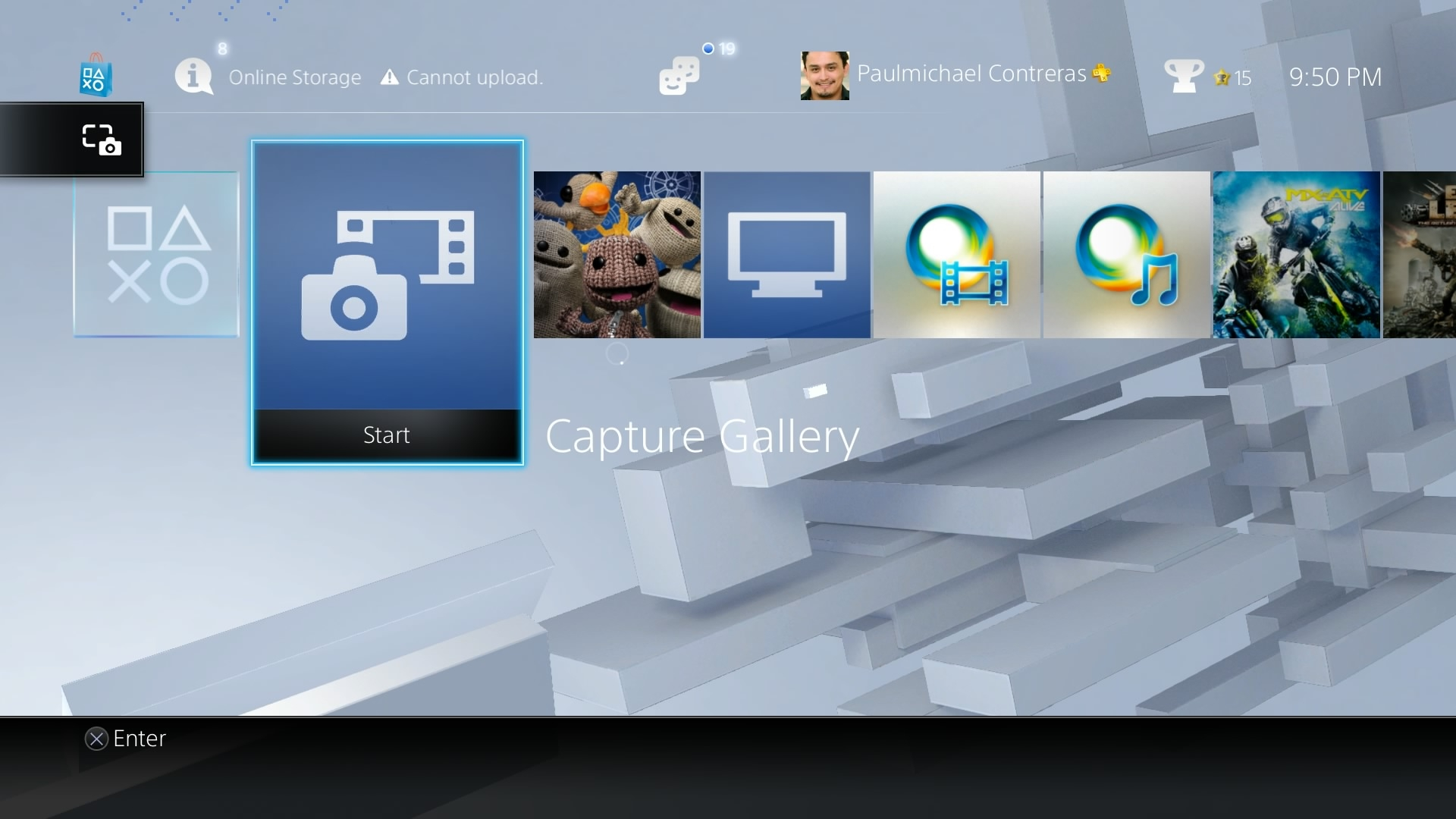
Step 1: Start the Capture Gallery app.
-
Popit Glitch Fix 02
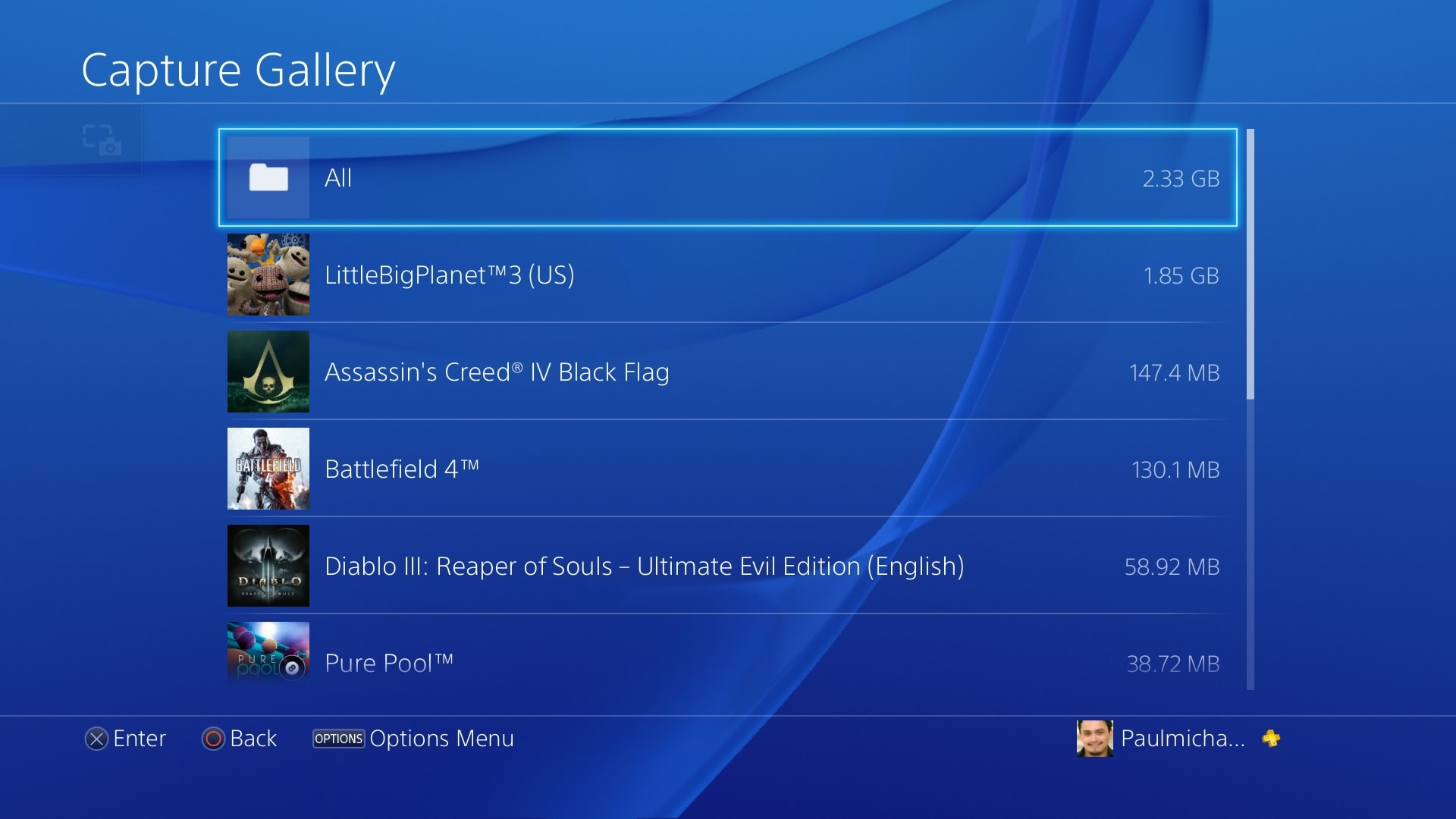
Step 2: Select the All folder.
-
Popit Glitch Fix 03
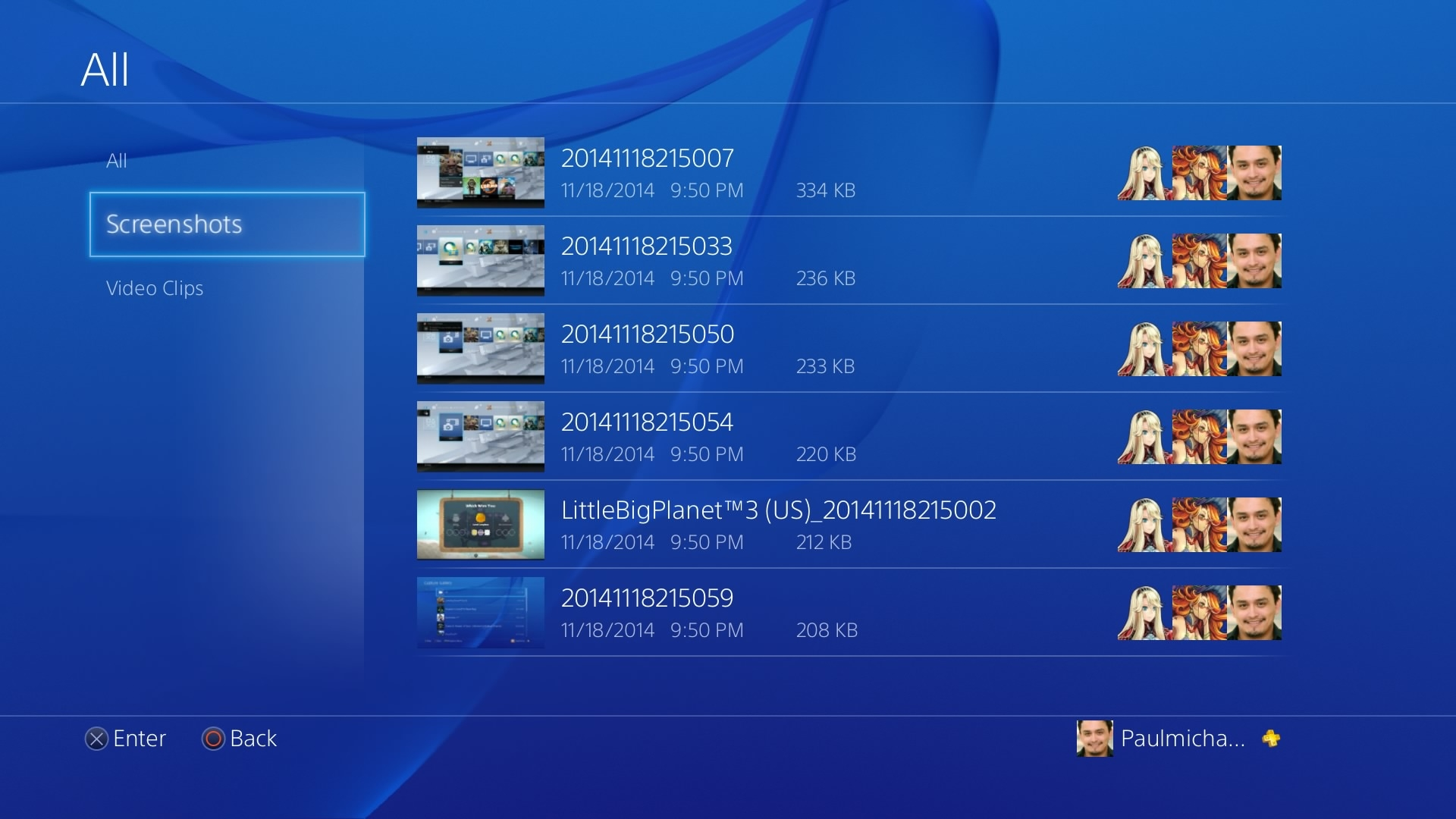
Step 3: Navigate to the Screenshots section.
-
Popit Glitch Fix 04
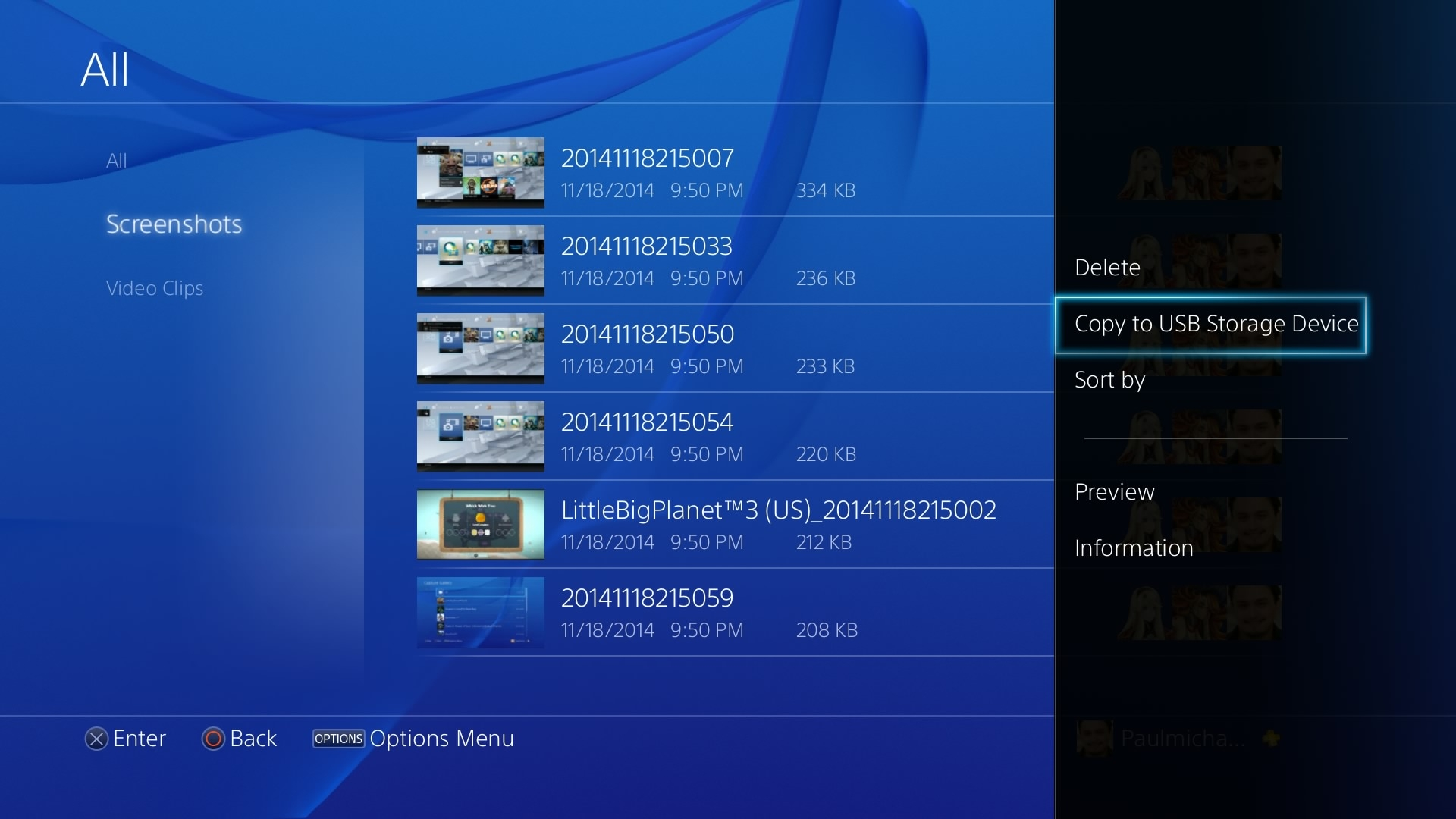
Step 4: Press Options, and select Copy to USB Storage if you want to backup your screens first.
-
Popit Glitch Fix 05
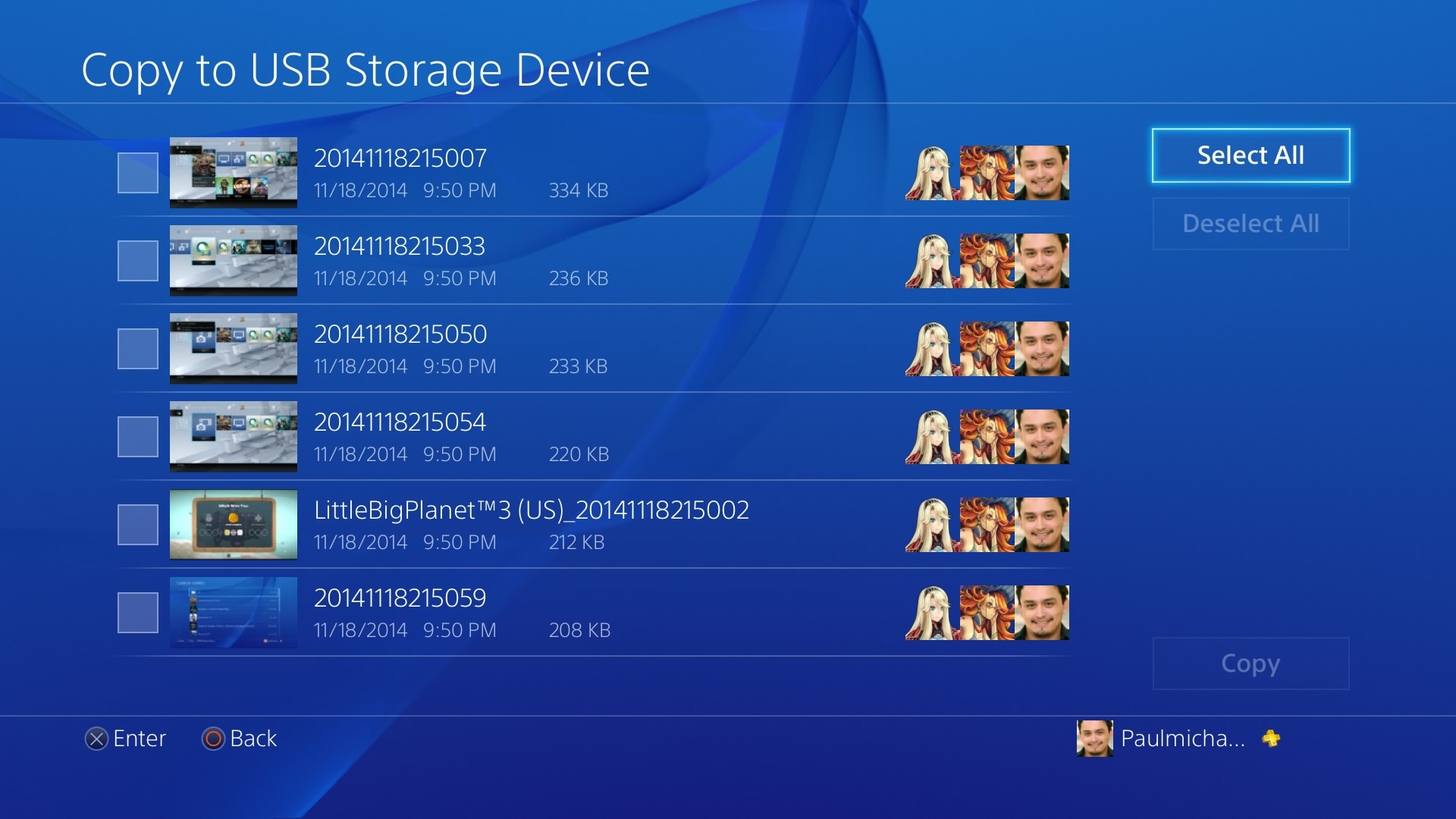
Step 5: Choose Select All.
-
Popit Glitch Fix 06
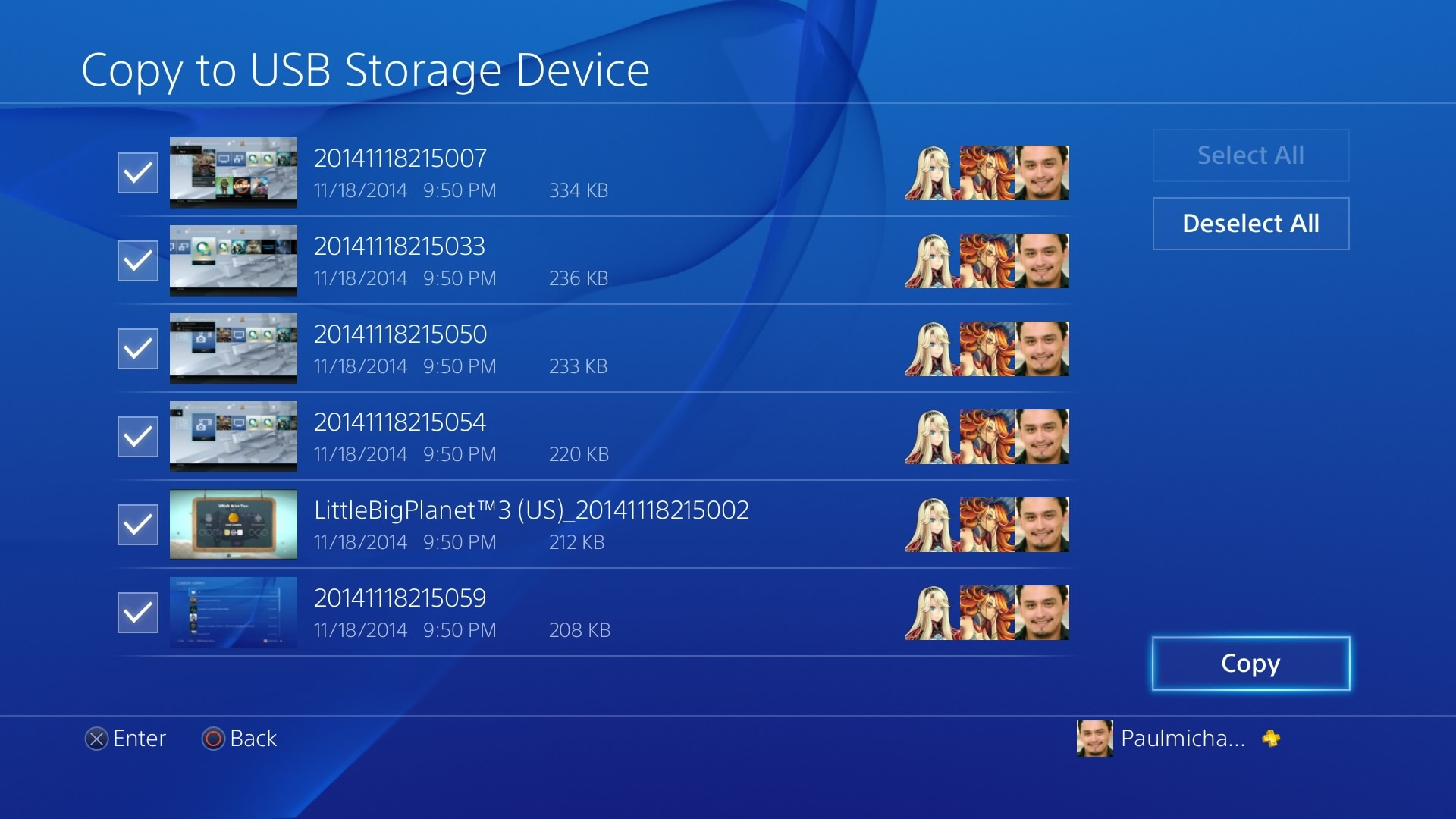
Step 6: Select Copy.
-
Popit Glitch Fix 07
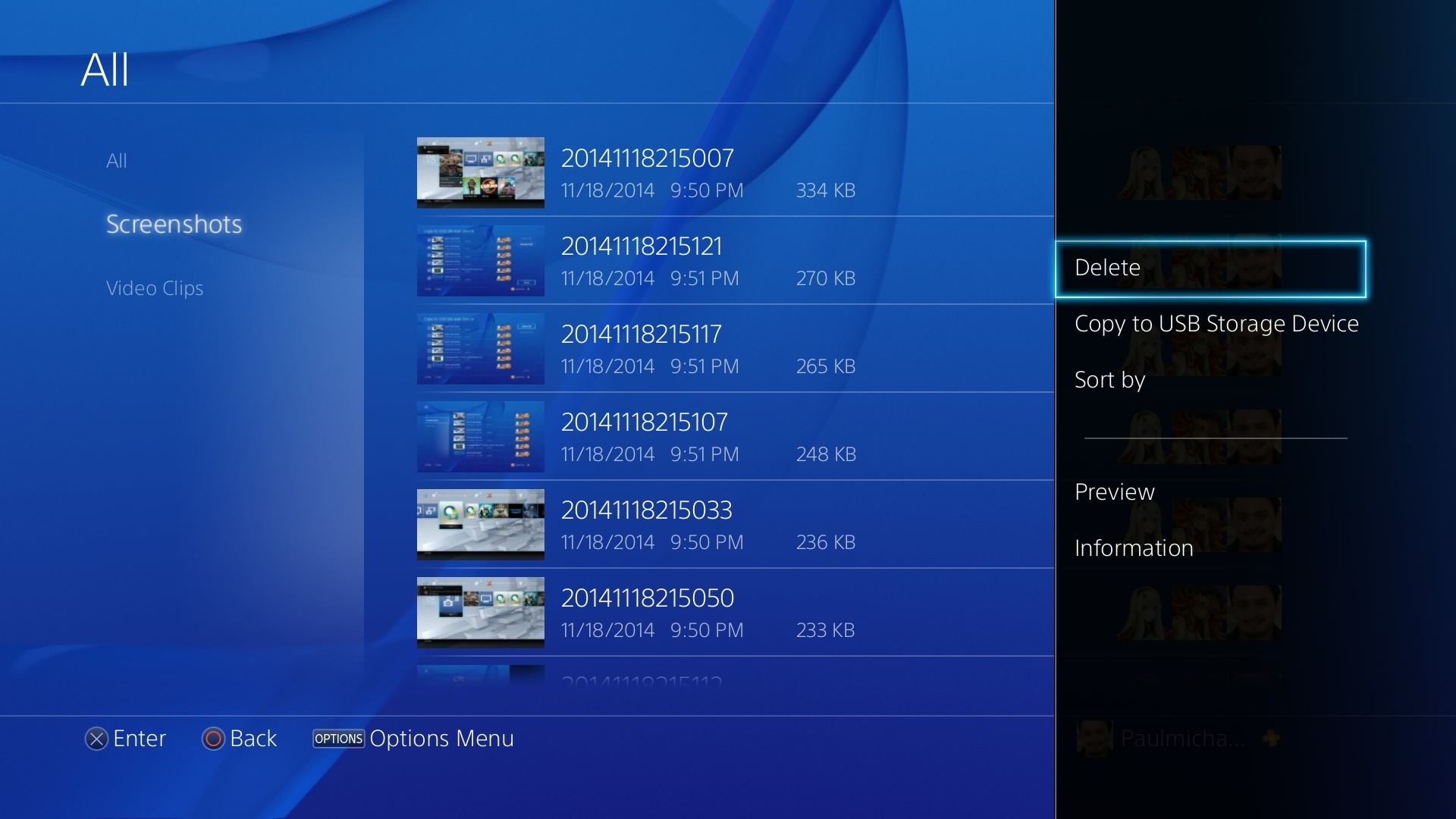
Step 7: Once the copy finishes, press Options again and select Delete.
-
Popit Glitch Fix 08
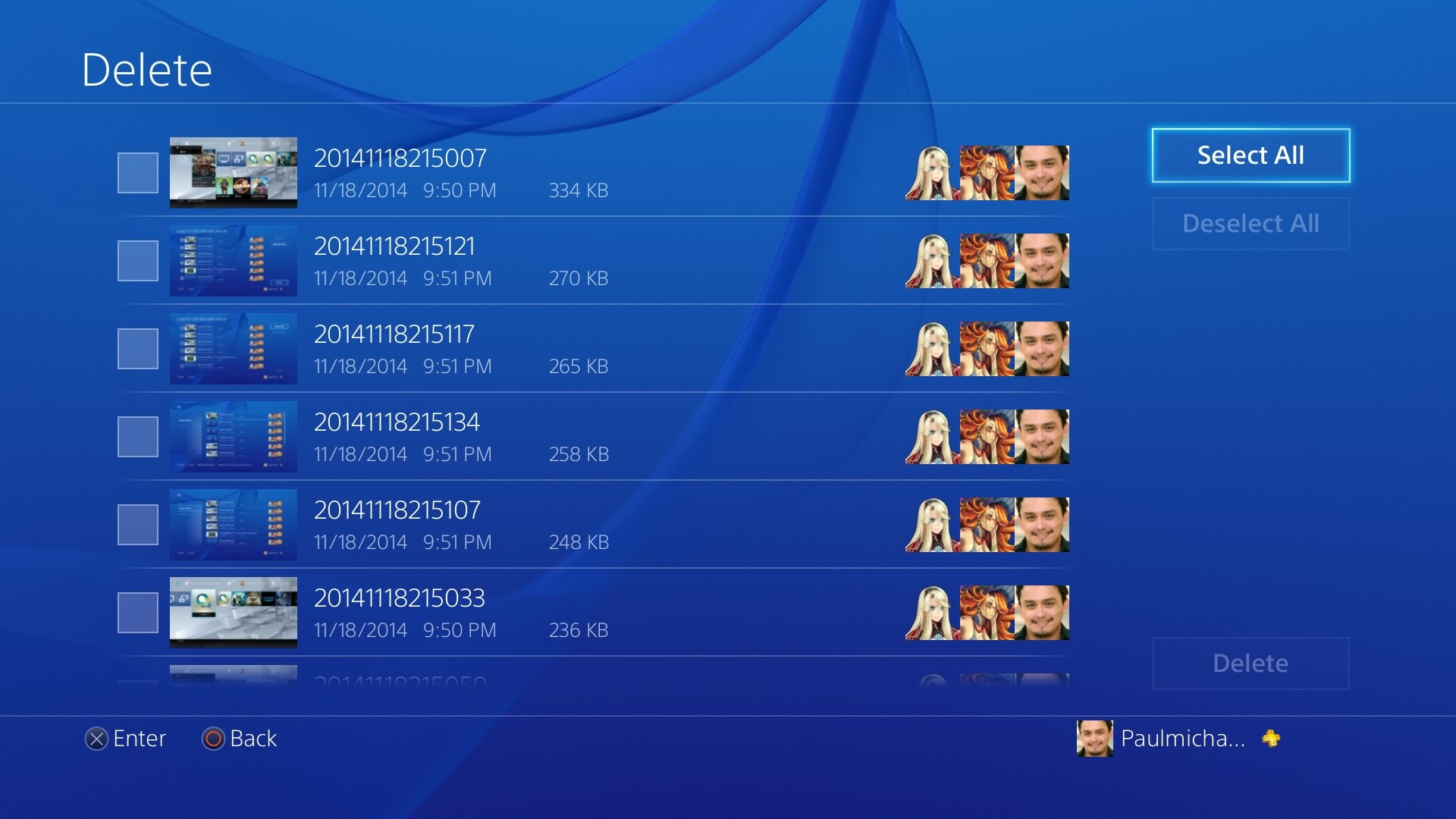
Step 8: Choose Select All again.
-
Popit Glitch Fix 09
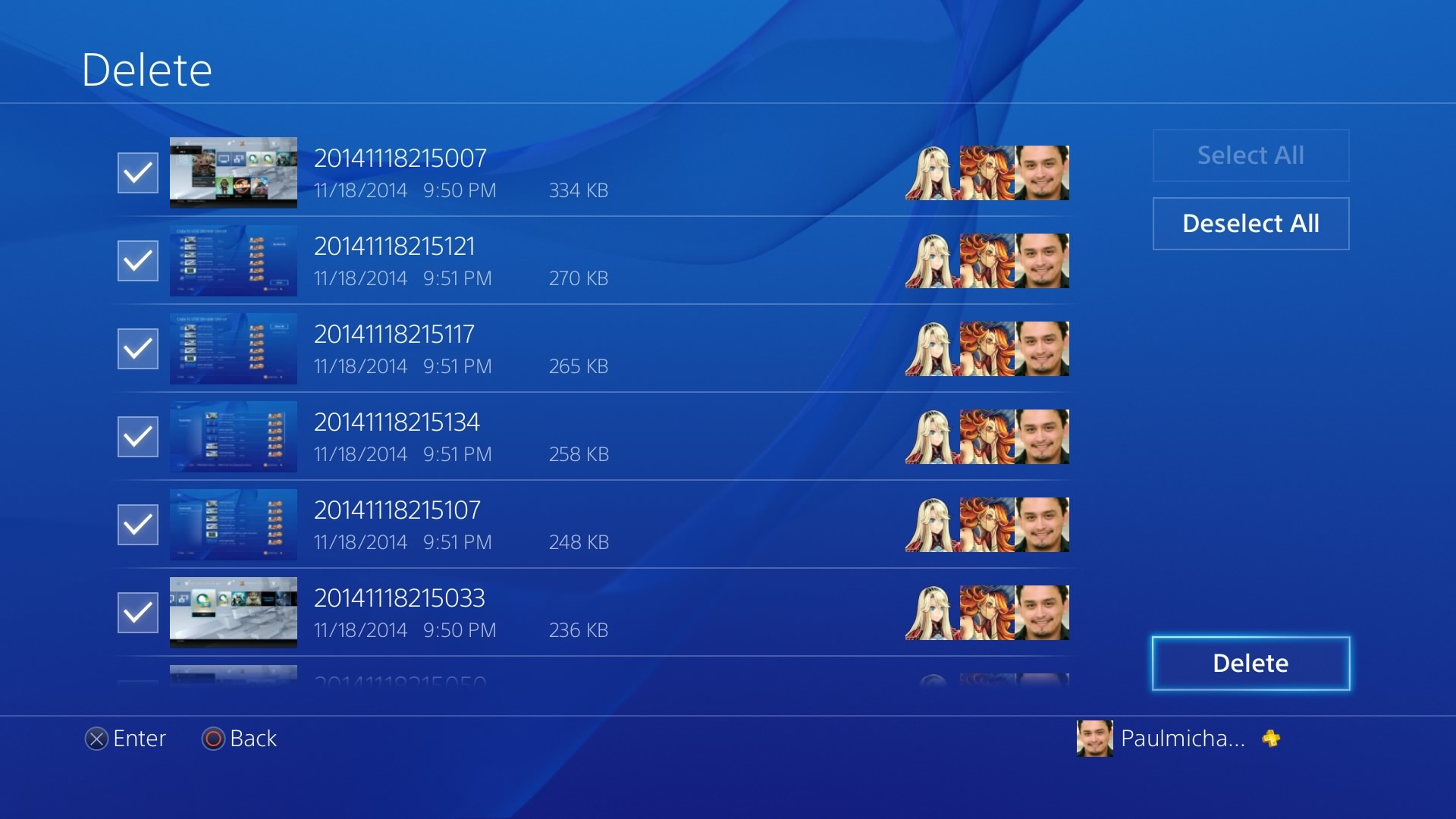
Step 9: Select Delete. You may be warned about other users losing access to the photos, but select Ok to proceed. Important: if any screenshots are in queue to upload, they will not be deleted and you will be notified that they are in use. Either allow them to upload or delete them from your Uploads section of the PS4's Notifications area.